ClawBox: My AI-Powered Personal Assistant on My Desk
- Introduction
- What Is ClawBox?
- Setting It Up
- What We Have Done Together
- How It Actually Feels to Use
- The Possibilities
- Privacy and Ownership
- Conclusion
Introduction
Over the past few years, AI assistants have mostly lived in the cloud. You open a browser, type a message, get an answer, and close the tab. The assistant forgets who you are. It has no idea what tools you use, what your home looks like, or what you worked on last week. Every session starts from zero.
I have been looking for something different — an AI that actually lives in my environment, remembers context, connects to my real tools, and keeps working even when I am not at the keyboard.
That search led me to ClawBox.
This post is my first account of what it is, how I set it up, and where things could go from here.
What Is ClawBox?
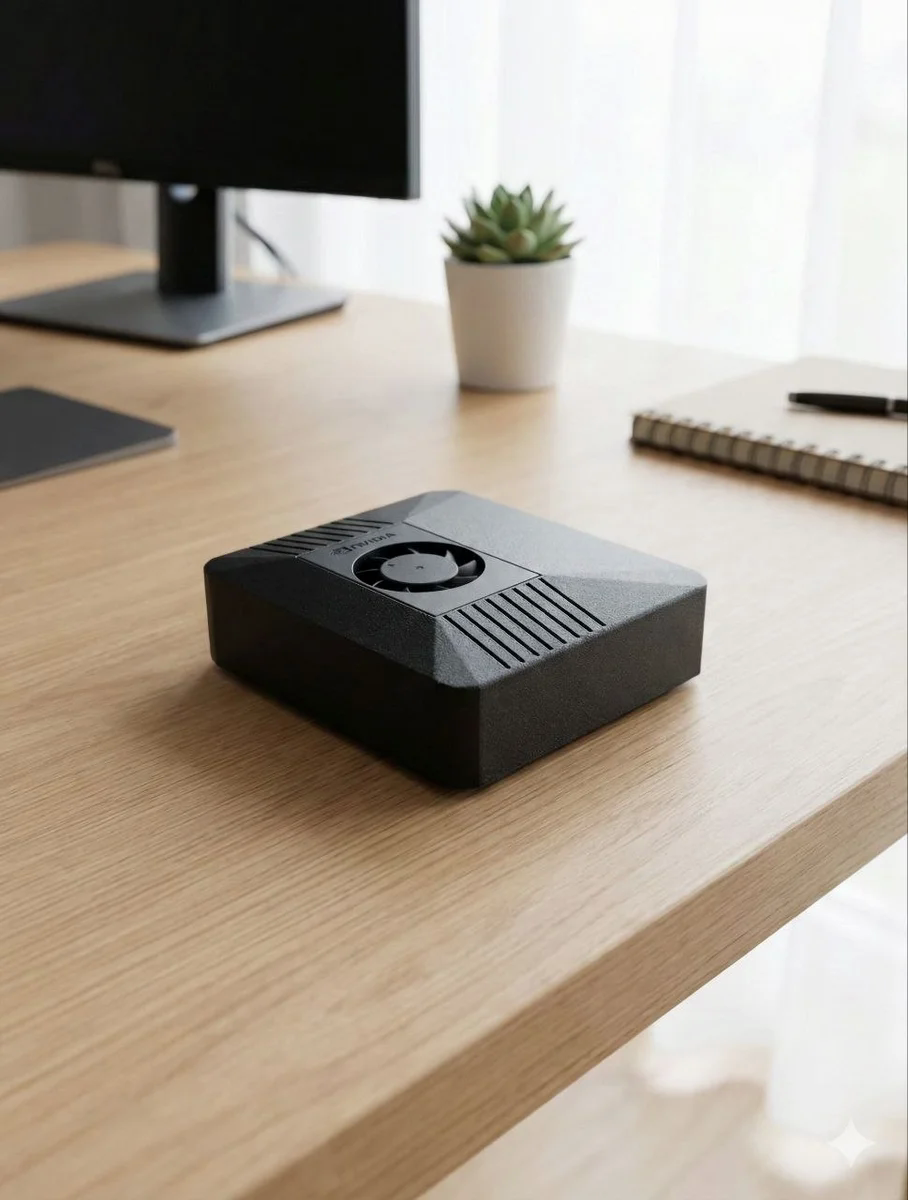
ClawBox is a self-hosted AI computer. Not a cloud subscription, not a browser extension, not an app. It is a physical device you buy once, plug in, and own. It sits on your desk and runs an AI assistant around the clock.
The product is made by OpenClaw Hardware and ships with their OpenClaw OS pre-installed — a full AI-optimised operating system with a web desktop, a set of pre-built apps, and an AI gateway that connects your choice of AI model to every tool on the device.
The Hardware
The box is built around an NVIDIA Jetson Orin Nano Super — a compact system-on-module that delivers real neural network acceleration at desk-scale power consumption.
Key specs:
| Spec | Value |
|---|---|
| AI Performance | 67 TOPS |
| GPU | 1024-core NVIDIA Ampere |
| RAM | 8 GB LPDDR5 |
| Storage | 512 GB NVMe |
| CPU | 6-core ARM Cortex-A78AE |
| Power draw | 7–15 W |
| Dimensions | 100 × 79 × 31 mm |
| Case | Carbon fiber |
| Price | €549 (one-time) |
| Annual electricity cost | ~€39 |
To put the power consumption in perspective: running this device 24/7 for a full year costs roughly the same as a single month of a mid-tier SaaS AI subscription. After that, the hardware pays for itself every month.
The Software Stack
OpenClaw OS is a custom Linux distribution running a Next.js web desktop served locally at http://clawbox.local. The desktop includes a chat window, file browser, terminal, browser, VS Code (code-server), an app store, and a settings panel.
The intelligence layer is an OpenClaw gateway — a service running locally on port 18789 that connects to your chosen AI provider and exposes an MCP (Model Context Protocol) server. This MCP server is what gives the AI direct access to the device itself: shell commands, file system, browser automation, web search, system stats, and integrations with external services like email, calendar, and messaging apps.
You can plug in Claude, GPT-4, Gemini, local Ollama models, or the built-in ClawBox AI. You can switch providers in one click. I use Claude for direct conversations and a local llama.cpp model for background jobs — keeping cloud calls to a minimum.
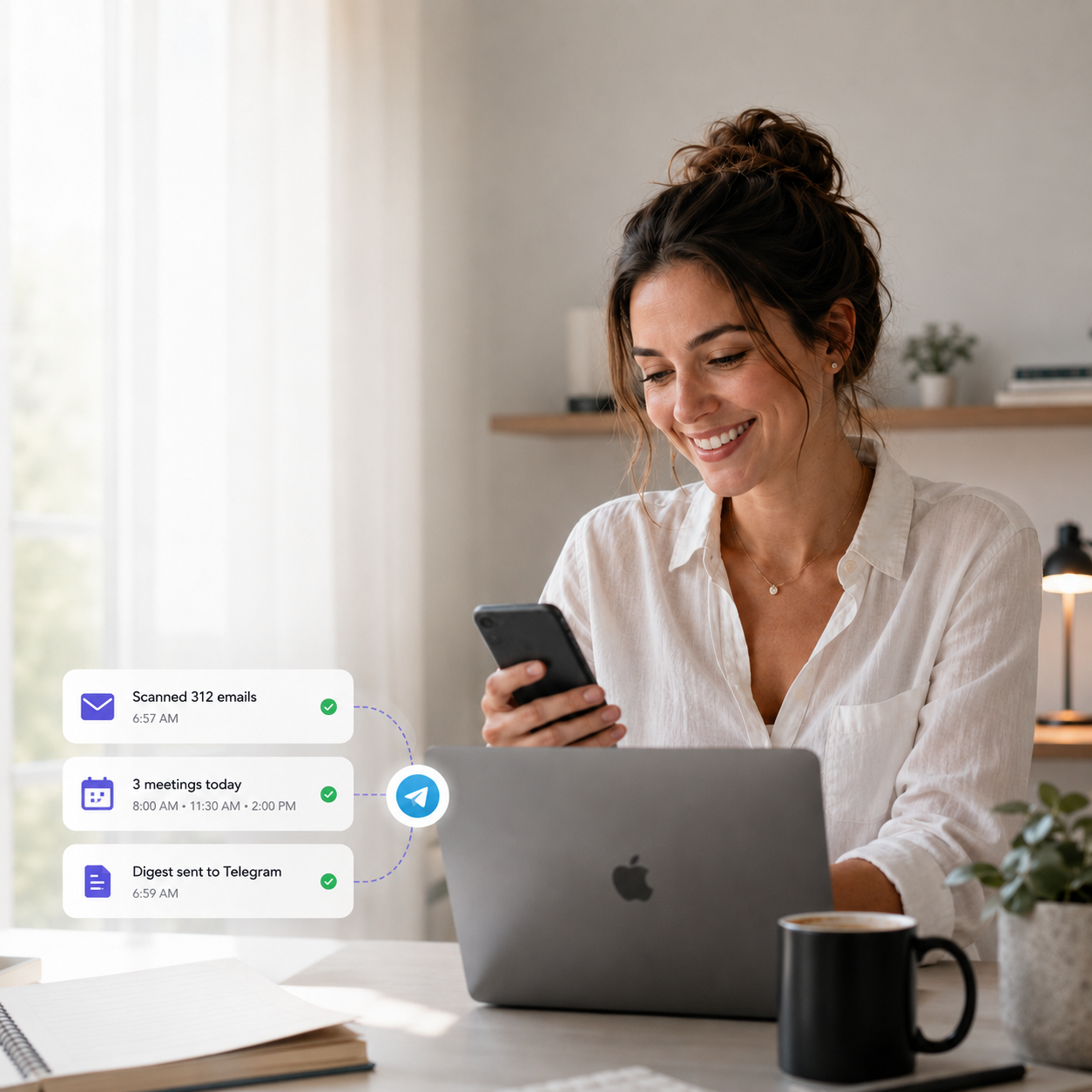
What this means in practice: the AI does not just answer questions. It takes actions on your behalf. It can read and write files, run shell commands, control a browser, call APIs, commit code, and send messages — all from the same chat interface you use to talk to it.
The Mascot
There is a crab. It lives in the corner of the desktop and has eleven documented emotional states — ranging from waddle (just vibing, 45% of the time) to ultimate (when the AI is warming up, complete with lightning bolts and references to Kamehameha energy attacks).
The source code describes the mascot as “lazy, sarcastic, scandalous.” This is not an accident. It is the brand. The crab collects quotes from your conversations and recycles them into passive-aggressive one-liners on the desktop the next day. Choose your words.
It works. The device has a personality, and that matters more than you would expect for something you look at all day.
Setting It Up
Setup is deliberately minimal. You:
- Plug the device into power and ethernet (or connect via the setup WiFi AP)
- Navigate to
http://clawbox.localor10.42.0.1in a browser - Walk through a 7-step wizard: WiFi, security, updates, AI provider choice, optional messaging integrations, done
The wizard supports 10 languages and takes about 5 minutes. After that you are at the desktop with a working AI chat window. No terminals, no config files, no containers to manage.
From there, skills extend what the AI can do. Skills are SKILL.md files that give the agent specialised instructions for specific tasks — connecting to Home Assistant, working with GitHub, managing email, generating diagrams, and so on. They install from the built-in App Store or from the workspace directory.
What We Have Done Together
Within the first sessions I had a working setup across several real integrations.
Home Assistant Integration
The first thing I wanted was smart home control. My Home Assistant instance runs on the local network and exposes a REST API. We:
- Installed the Home Assistant skill
- Created a config file storing the Home Assistant URL and long-lived access token
- Wrote a small shell script wrapping the API (
ha.sh) - Tested the connection against the live API
Now the AI can query sensor states, check which devices are on, and trigger automations. It can also do this proactively — if I ask it to monitor temperature or alert me when something changes, it sets a cron job to check periodically and reaches out over Telegram when the condition is met.
# Query a sensor state
./ha.sh GET /api/states/sensor.living_room_temperature

# Trigger a script
./ha.sh POST /api/services/script/turn_on '{"entity_id": "script.good_morning"}'
Email via Outlook and Maton
Next was email. ClawBox uses Maton as a connector for Outlook and other email providers. After setting up the API key (stored in ~/.bashrc) and the connection ID, the AI can:
- Fetch and summarise unread emails
- Draft replies in my writing style for review
- Flag threads that need attention and surface them at the next heartbeat check
- Send emails after explicit approval
The key detail: the AI does not send emails autonomously. It drafts, surfaces, and waits for confirmation. External actions — anything that leaves the machine — always go through a review step. That boundary matters.
GitHub and Blog Automation
Finally — and this post is the proof — we connected ClawBox to GitHub. After a quick device-auth flow (one-time code at github.com/login/device), the gh CLI is authenticated and the AI can:
- Clone and explore repositories
- Create, edit, and commit files
- Push branches and open pull requests
- List issues, check CI run status, and view failed step logs
The immediate practical use case is blog automation. I described the topic I wanted to write about, the assistant researched the subject, drafted the post in the correct Jekyll front matter format for my blog, and the result gets committed to docs/_posts/ and pushed to trigger a GitHub Pages deploy. This post was written and published that way.
# Push the new post
git add docs/_posts/2026-05-21-clawbox-ai-personal-assistant.markdown
git commit -m "Add ClawBox blog post"
git push origin main
How It Actually Feels to Use
The thing that surprised me most is how natural the conversational control loop becomes once the integrations are live.
Before ClawBox, interacting with tools meant context-switching constantly — opening a browser for email, a different terminal for Git, a third app for Home Assistant. Each tool speaks its own language and has its own authentication flow. You spend a lot of cognitive overhead just navigating between them.
With ClawBox, all of that collapses into one conversation. “Check if there are any urgent emails and push the blog post draft” is a single message that triggers a sequence of real actions across multiple systems. The AI knows the context, knows the tools, and executes the steps.
The 24/7 availability is also genuinely different in practice. The device is always on, always connected, always running the heartbeat checks I configured. It is not something I have to open and close — it is infrastructure that runs in the background and surfaces things when they matter.
The Possibilities
What we have set up so far is the baseline. Here is where things get more interesting.
Proactive Monitoring
The device runs constantly. Cron jobs and heartbeat checks mean the AI can monitor things without being asked: email, calendar events, Home Assistant alerts, GitHub CI failures, website uptime, infrastructure metrics. When something needs attention it reaches out over Telegram or WhatsApp. You do not have to poll anything — things come to you.
Local AI Models
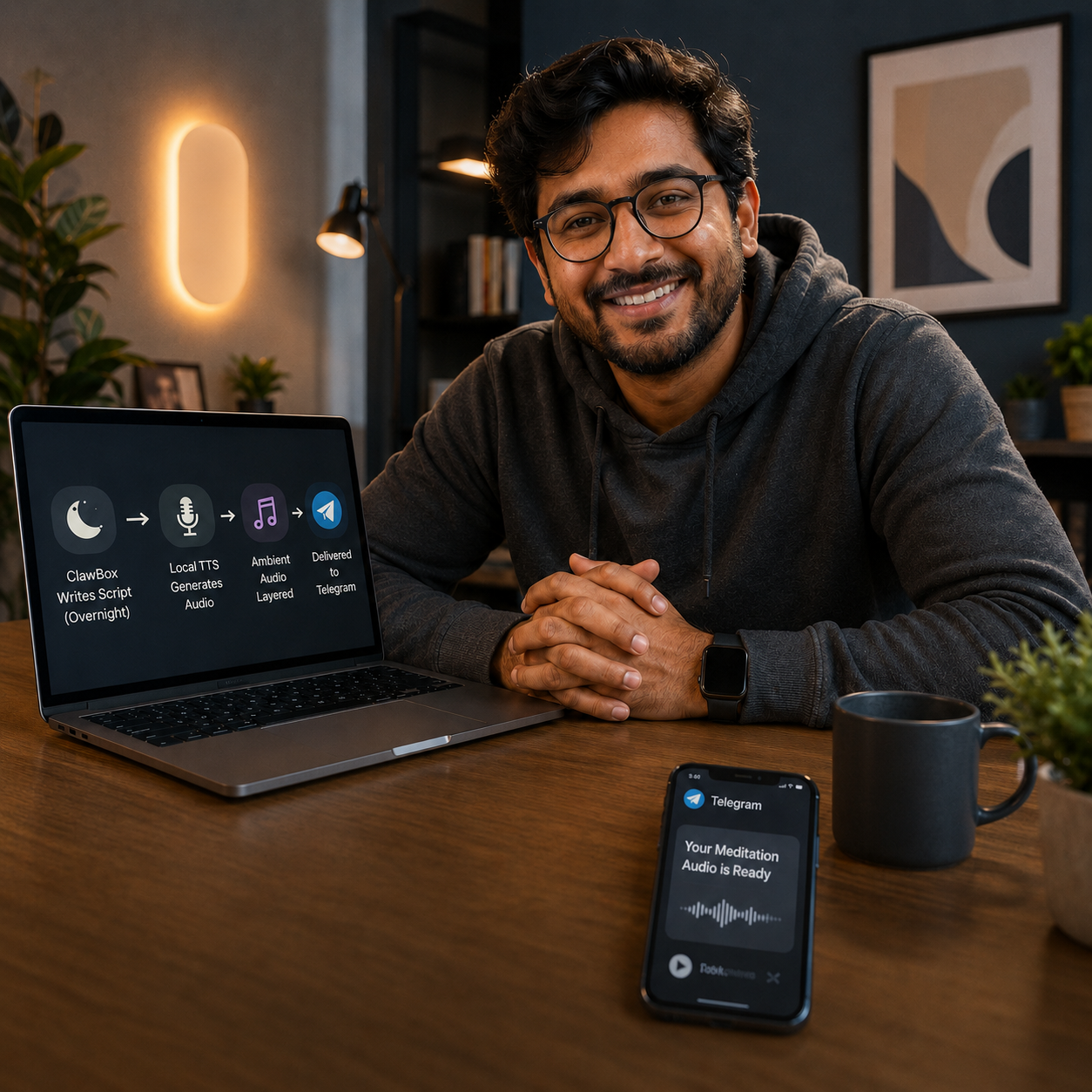
With Ollama installed and llama.cpp support built in, background tasks can run entirely on-device using models like Gemma or Llama 3. My setup uses a local gemma4-e2b-it-q4_0 model for cron jobs and sub-agent work. This keeps cloud API calls — and costs — minimal. The main conversation uses Claude; the background grunt work stays on-device.
Browser Automation
Chromium runs headlessly on the device, accessible via CDP on port 18800. The AI can open pages, click elements, fill forms, take screenshots, and extract content — all from a chat message. This opens up web scraping, automated reporting, form submission workflows, and UI testing that would otherwise require a dedicated server setup.
App Generation
From a single prompt, ClawBox can scaffold a multi-file web application — HTML, CSS, JavaScript — bundle it, and deploy it to the desktop as a launchable app. Pomodoro timers, monitoring dashboards, data visualisations, custom utilities. The code assistant builds it and ships it to the screen in one conversation turn. No boilerplate, no build pipeline to set up.
Multi-Channel Messaging
The OpenClaw gateway supports Telegram, Discord, WhatsApp, Signal, Slack, iMessage, and more. The same AI agent that responds in the desktop chat window is reachable from any of those channels. More usefully, it can send to them proactively — daily summaries, alerts, draft reviews — wherever you already spend time.
Multi-Agent Work
Longer-running tasks get delegated to isolated sub-agents that run in the background, report back when done, and clean up after themselves. The main session stays responsive. You can kick off a research task, a refactoring job, or a data pipeline and come back to the result without watching it run.
Privacy and Ownership
This deserves a separate note. Every integration I have described — email, smart home, GitHub — involves sensitive data. With a cloud-based assistant, that data transits through and potentially gets stored on third-party infrastructure. With ClawBox, it does not leave your network unless you explicitly use a cloud AI provider for the inference step.
The device, the memory files, the config, the integrations — all of it lives on hardware you physically own. The AI’s memory is files in a directory on a local NVMe drive. You can read them, edit them, delete them. There is no hidden state somewhere in a cloud account.
For anyone working with infrastructure, client data, or anything commercially sensitive, that distinction matters.
Conclusion
A quick note on how this post was made: I did not write it. The ClawBox AI did — based on my input, the integrations we set up together, and the context it had built up across our sessions. I gave it the topic, reviewed the draft, asked for changes, and approved the final version. The fact that a blog post about an AI assistant was written by that same assistant feels like the right way to illustrate the point.
ClawBox is a different kind of AI assistant. It is not a SaaS product you subscribe to and hope stays online. It is a physical device you own, running on your desk, connected to your actual tools, remembering your actual preferences, and doing actual work while you are not watching.
The combination of a capable AI model, real tool access via MCP, 24/7 availability, and local data sovereignty is something that just does not exist in the same form anywhere else right now. The first few sessions have already changed how I approach email, smart home automation, and documentation workflows.
What strikes me most is that this is still early. The skill ecosystem is growing, the hardware will get faster, and the patterns for what an always-on personal AI assistant can do are still being figured out. There is a lot of road ahead.
I will keep writing about what we build together. If you are curious about ClawBox, the OpenClaw Hardware site is the place to start.